
Go to the help overview.
|
Introduction
Organiseme has one default task board listed in the main menu: My Task Board. In this task board you can manage all your tasks from all your task lists - or you specify to display only tasks from some or even one task list. Yet due to this flexibility to manage tasks from multiple task lists the My Task Board cannot be shared with others. Also you might want to categorize tasks from one task list in a different way then in the My Task Board. Therefore Organiseme enables you to create:
On this page the My Task Board is described. Filter displayed tasks
It is possible to specify by task lists which tasks are visible on the Board. By clicking on the third icon from the left in the header row you can display / or hide the subheader. In the subheader all of your task lists are displayed. By checking / un-checking the checkbox you specify whether the tasks from this list are be displayed on the board or not. By default tasks of all task lists are displayed. 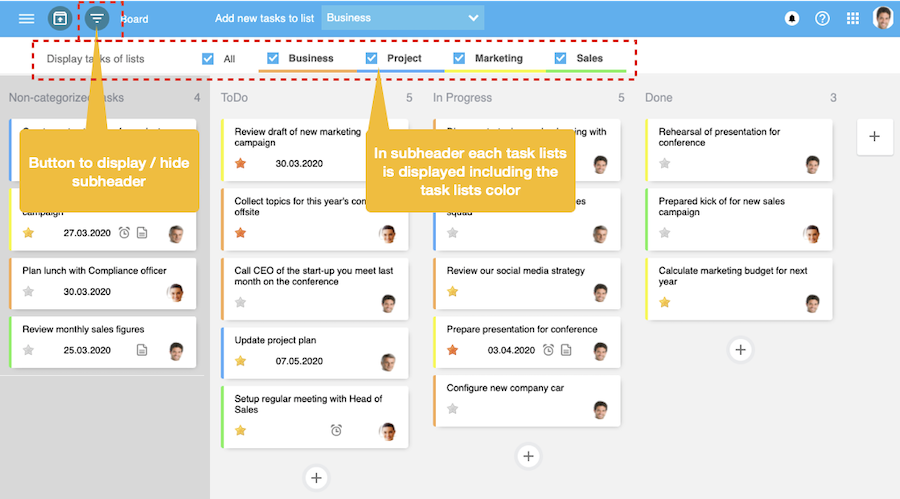
By un-checking one task lists all tasts that belong to this task lists disappear from the Board view. Sure they can be display the tasks again by checking the check box again. 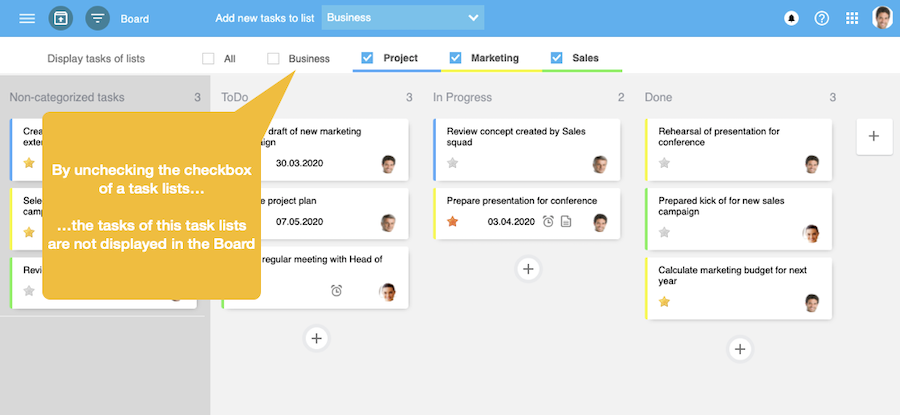
It is also possible to display only tasks from one task list in the Board view. 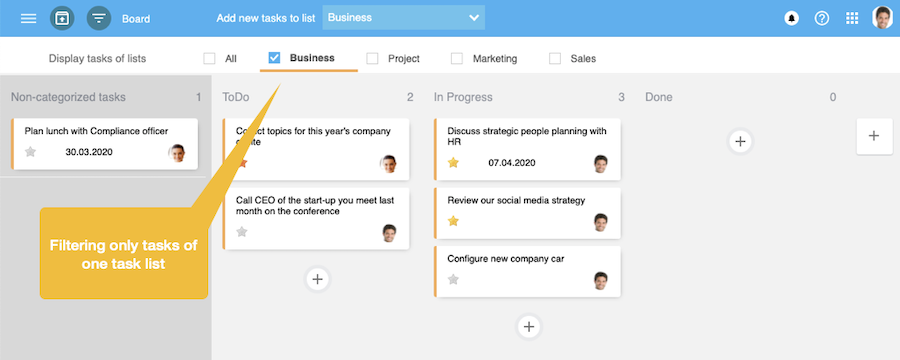
Display task list color for tasks
In order to see to which task lists a task belongs the color of the task list can be displayed on the left side of each tasks. Since the task list color is also displayed underneath the tsak list in the subheader for filtering the tasks the color of each task lists is visible 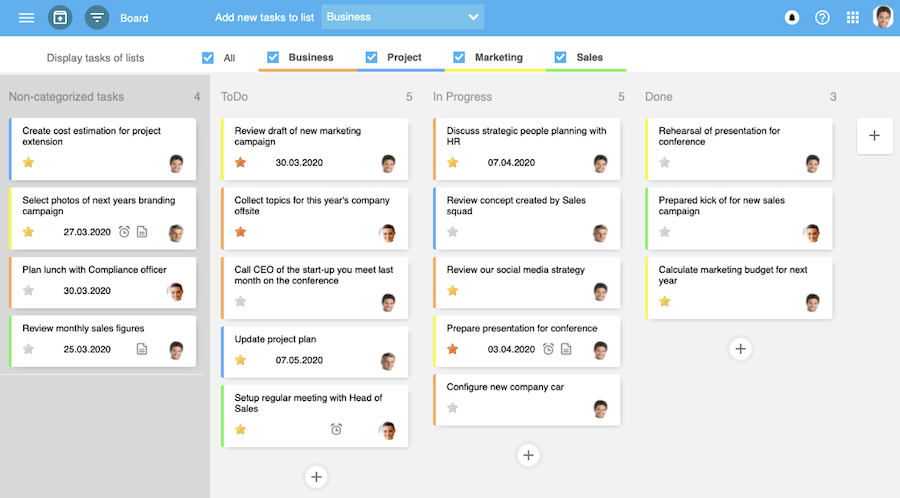
In the settings it is possible to define whether the task lists color should be displayed on the left side of each tasks. On the bottom of the "Site" page in the settings there is a checkbox that needs to be checked or unchecked according to the preferred option. 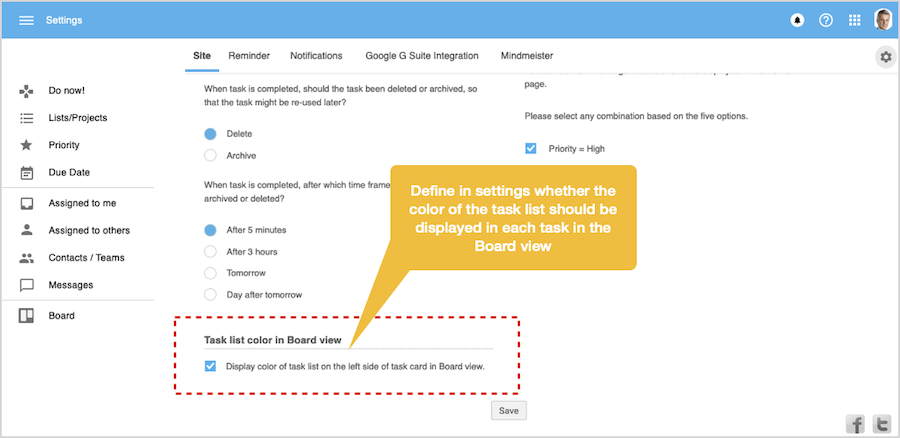
To change or delete the background color just open the task menu again, select "Set Color" and select the white color (= delete color) or any other color. Make tasks colorful
Since the tasks on the board are like sticky-posts on a wall we have also adopted the shiny colors. Just open the task menu and click on the "Set Color" entry. Then select one of the colors from the color palette - and the task will immediately change to this color. 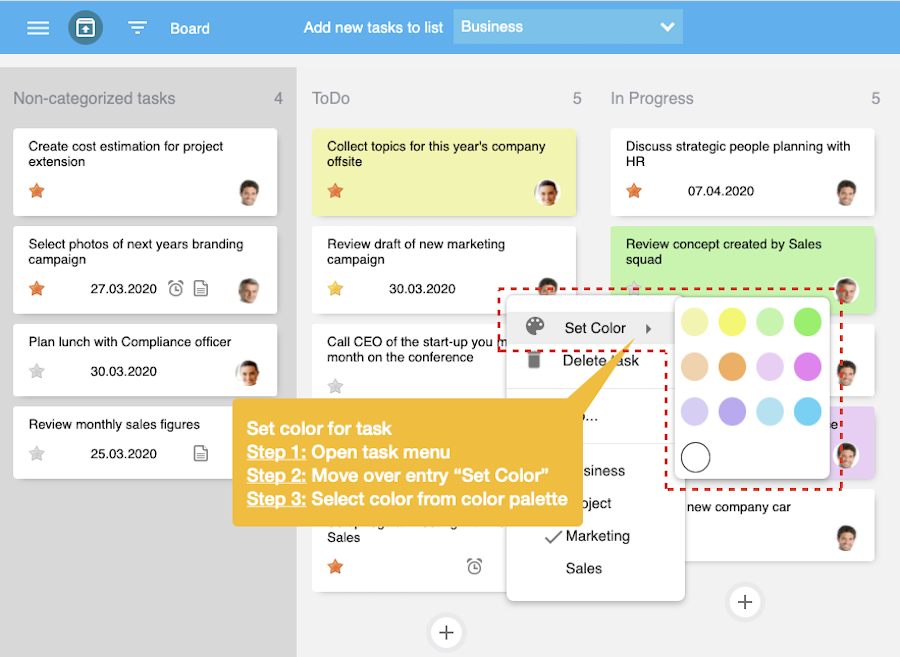
So you can give also your tasks in Organiseme colors to further differentiate them - or just to make managing your tasks more colorful. 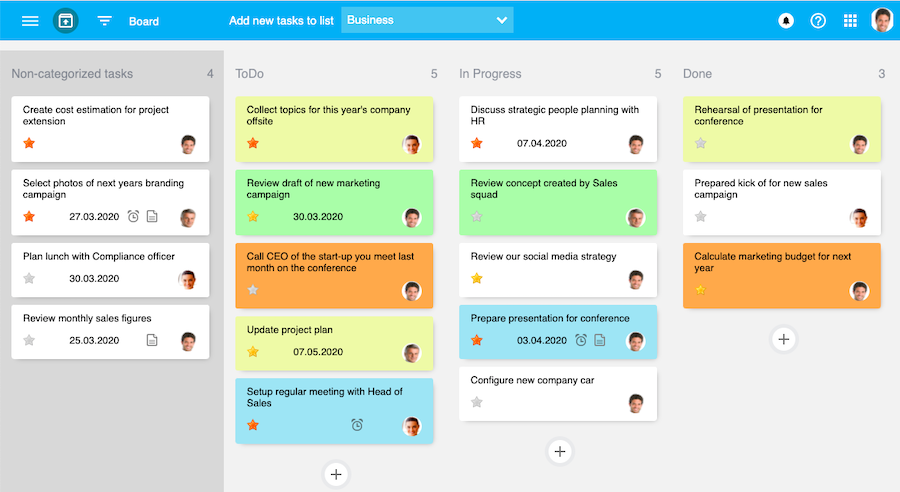
|