
Go to the help overview.
|
Actions on a task
In the Board view you can perform (almost) the same actions with a task than in other views. Just move the mouse above the task - and you will see the same icons then in the other views. 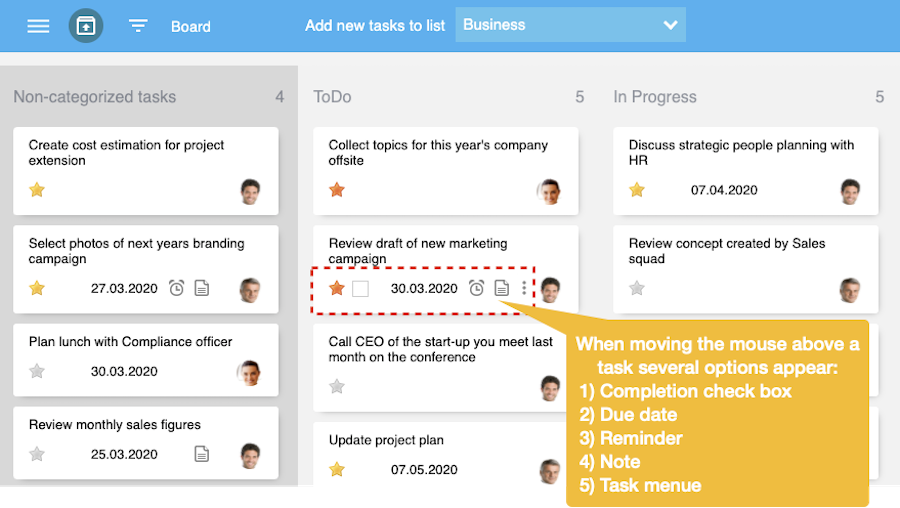
In the Board view the person responsible for the task is permanently displayed with the profile photo. We chose to display the responsible person permanently since the Board view is often used by teams. In the following you find descriptions how to set, edit or delete the different elements of the task. Task description
Edit the task description by double-clicking on the description. Then the whole task turns into an text entry box, and you can edit the description. 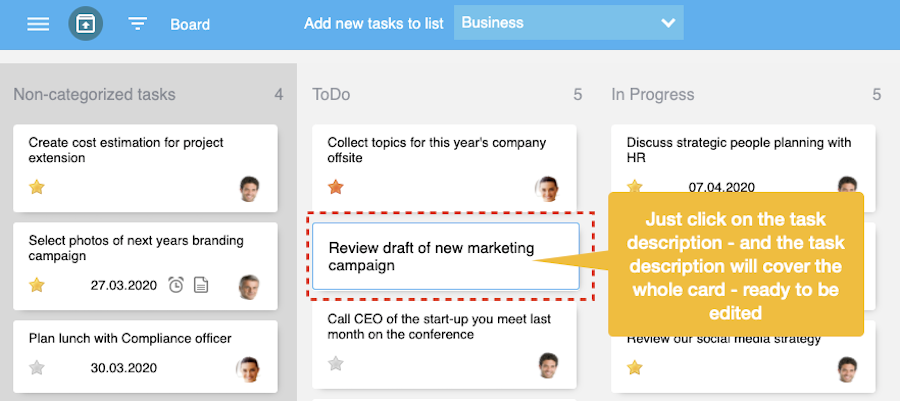
Priority
Change the priority by clicking on the priority star. Complete task
Complete a task by checking the completion check box. 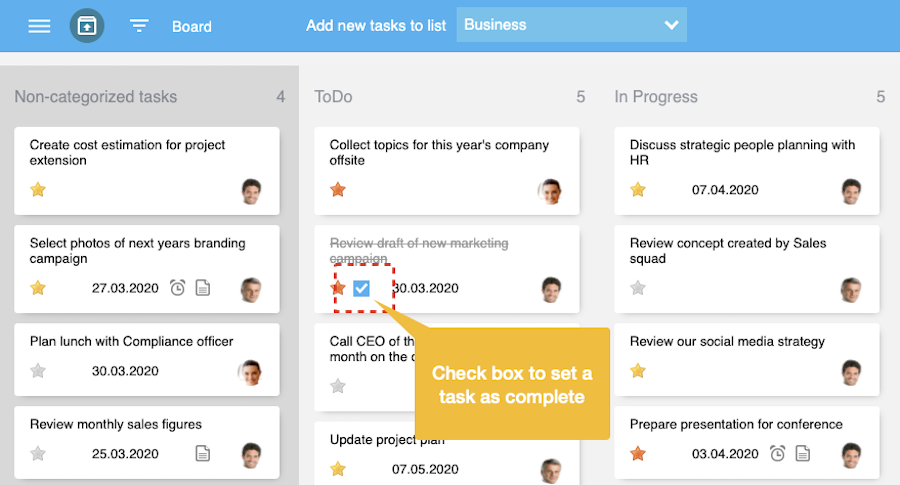
Due Date
Click on the calendar icon to open the due date dialog box where you can assign, change or delete a due date for the task. 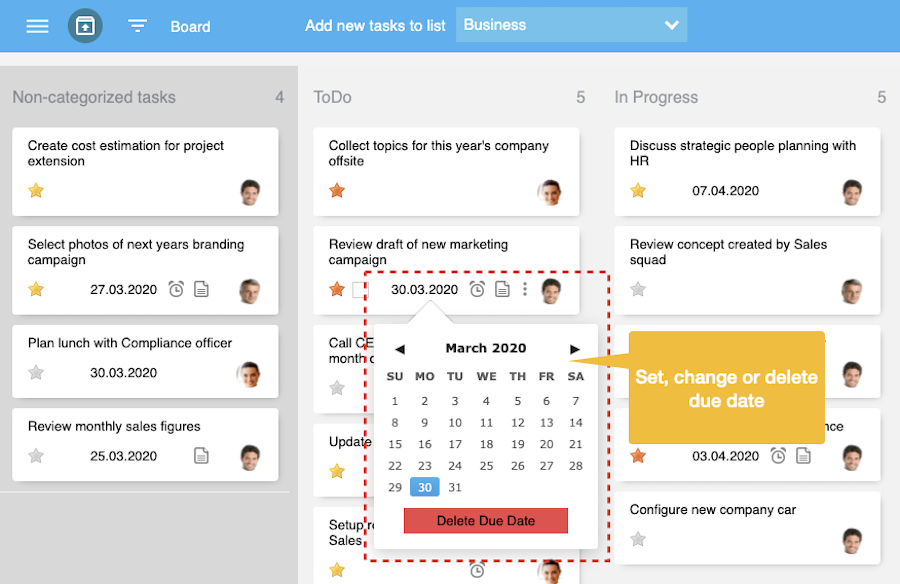
Reminder
Click on the alarm clock icon to open the reminder dialog box where you can assign, change or delete a reminder for the task. 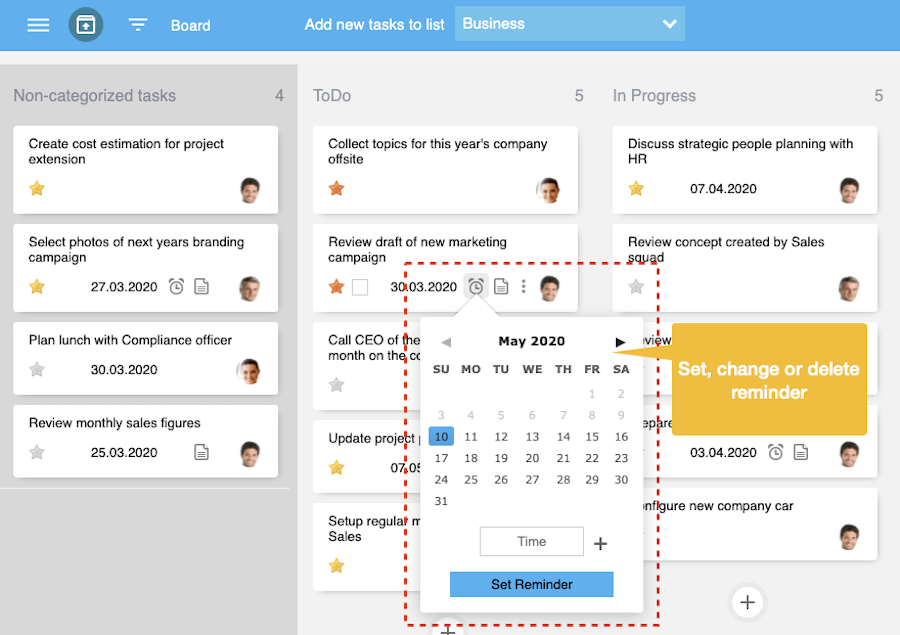
Task note
When clicking on the task note icon a dialog box opens where you can enter a note, edite or delete an existing note. 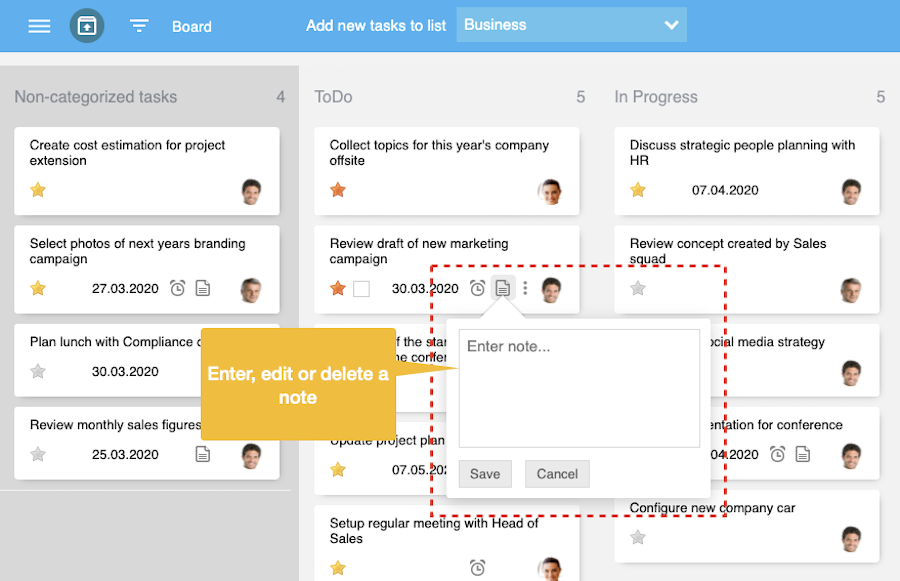
Make tasks colorful
Since the tasks on the board are like sticky-posts on a wall we have also adopted the shiny colors. Just open the task menu and click on the "Set Color" entry. Then select one of the colors from the color palette - and the task will immediately change to this color. 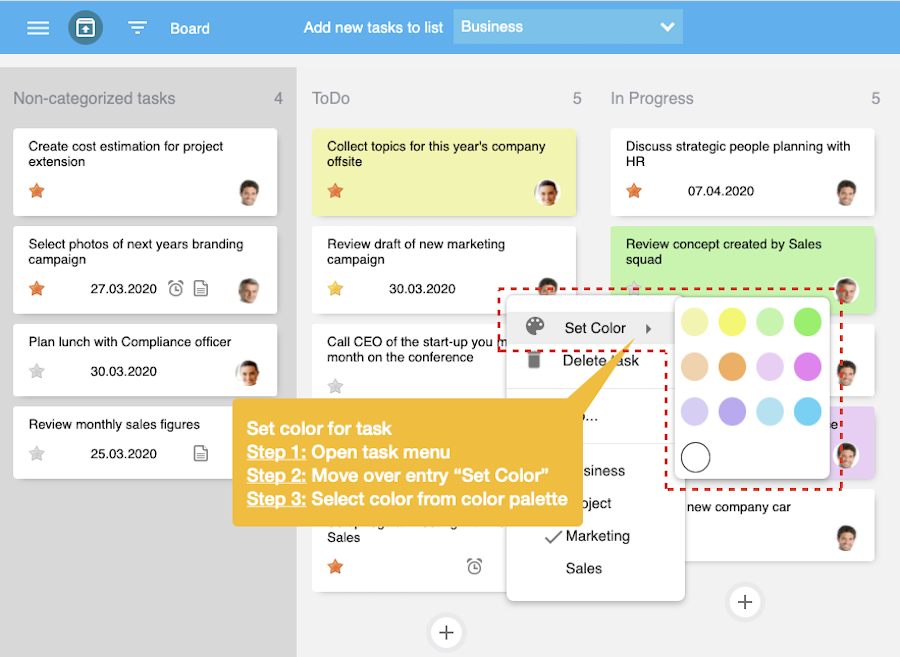
So you can give also your tasks in Organiseme colors to further differentiate them - or just to make managing your tasks more colorful. 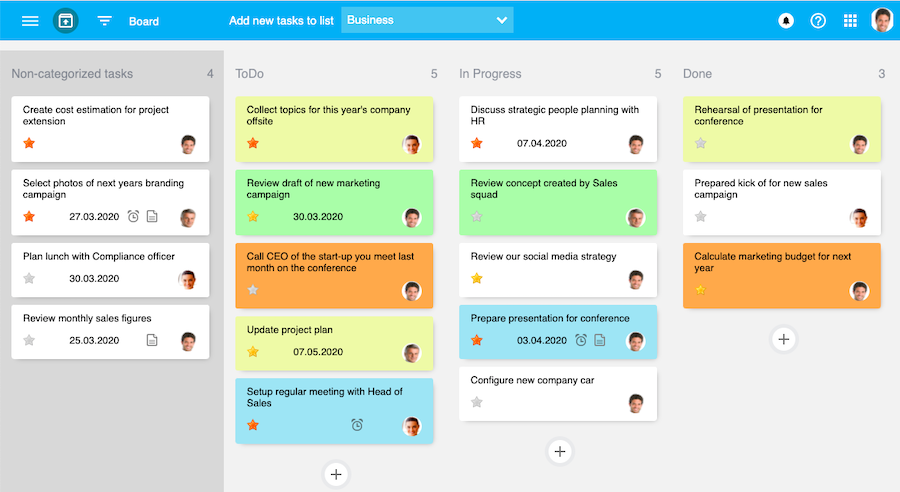
Attachments
In the Board view you can neither view files that have been attached in the task list views nor is it possible to add attachments. When you need to attach files to a task please switch to the task list view. And when you would like to have this feature also in the Board view pleaes drop us a mail. Task related messages
Similar to the attachments also task related messages can not be accessed in the Board view yet. And it is not possible to add task related messages. Please tell us when you miss this features. Change task list
To move the task to another task list just open the task menu. The task list for which the task is currently assigned is marked with the hock symbol. For assigning the task to another task list just move the mouse above the task list name and click. 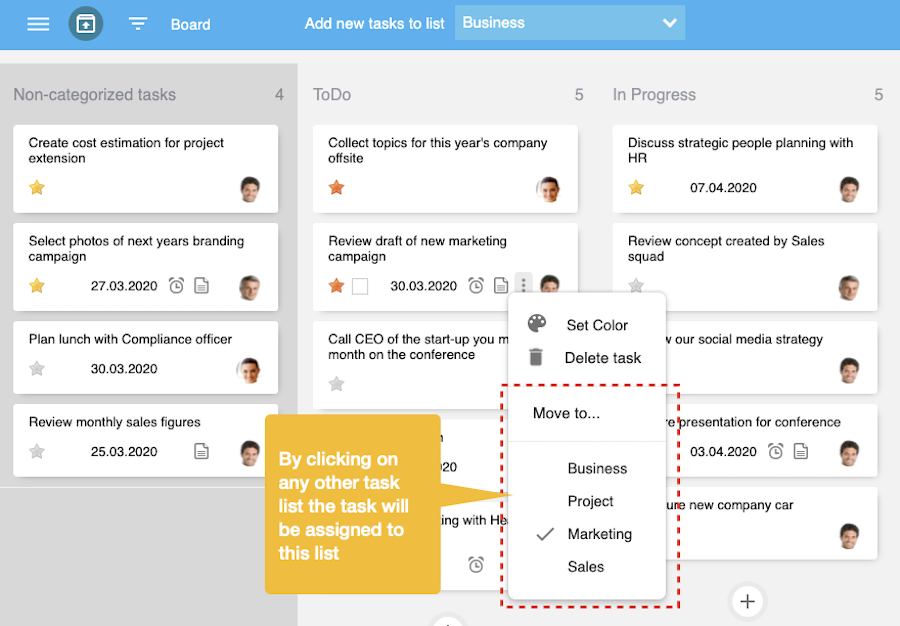
Delete task
Tasks that are in your responsibility can be deleted by you. Open the task menu and select "Delete Task". The task menu will close and the task will disappear. 
Delegate task
In order to assign a task created by you to another person you need to click on the profile photo. 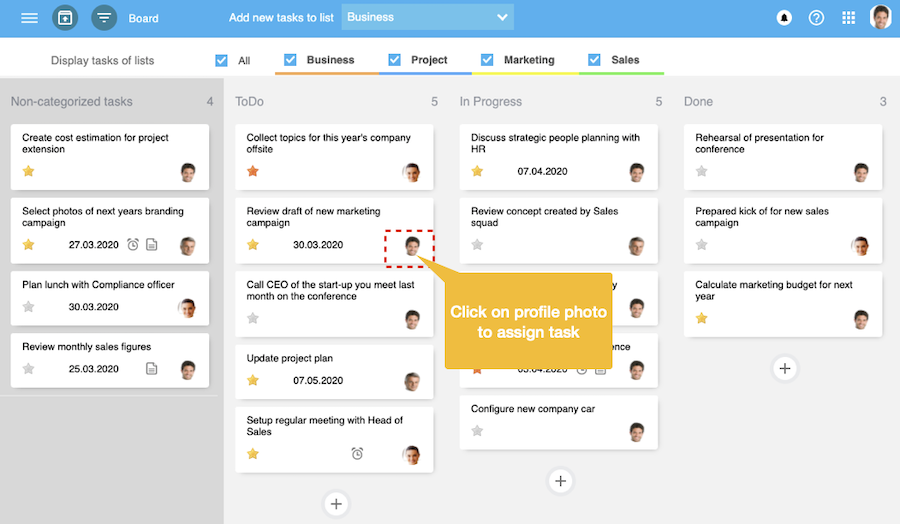
Then the dialog box appears where you can either assign the task to one of your confirmed contacts or to any other person by entering the email address of this person. 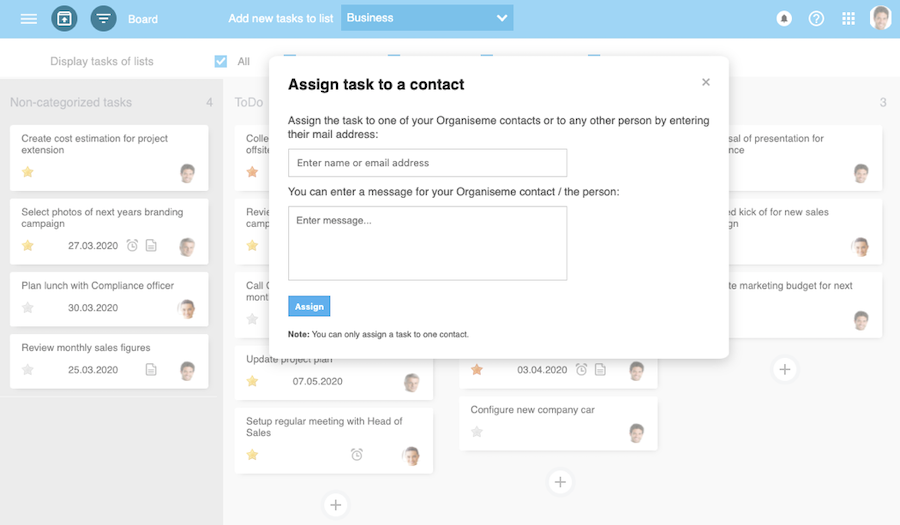
After assigning the task to one of your contacts the profile photo of this person will be displayed. Call task back / Give task back
To call back a task that you have assigned to another person just open the task menu and select "Call task back". Then the task will be again assigned to you. 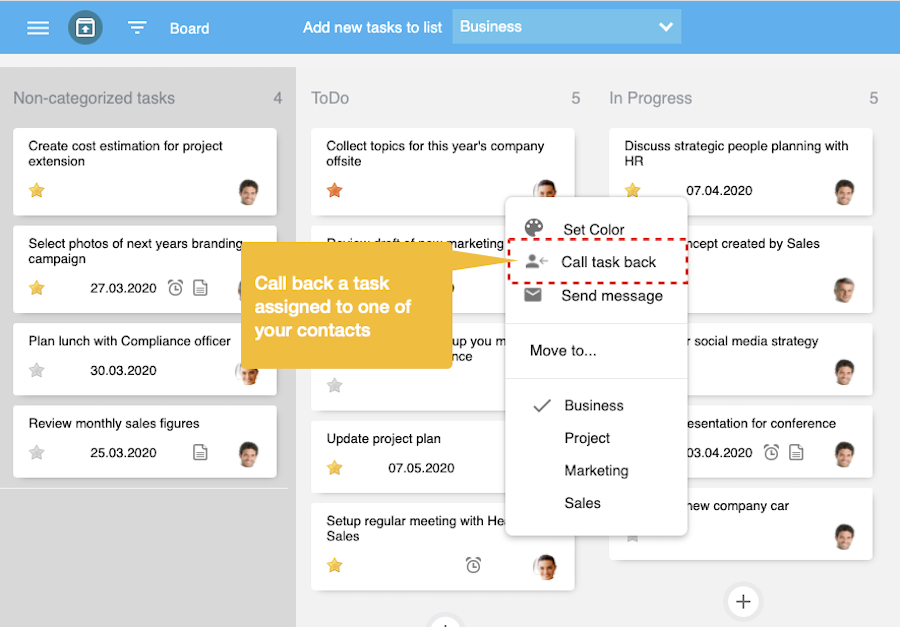
When you want to give back a task that has been assigned by one of your contacts to you, and you had accepted the task, you need to open the task menu. Then select "Give task back" and the task will disappear from your Board view as well as from your task list. Send message
When you want to sent a message to the contact, to whom you have assigned the task, or who has assigned the task to you, then open the task menu and select "Send message". Then a dialog box will appear where you can enter the message before sending it off. 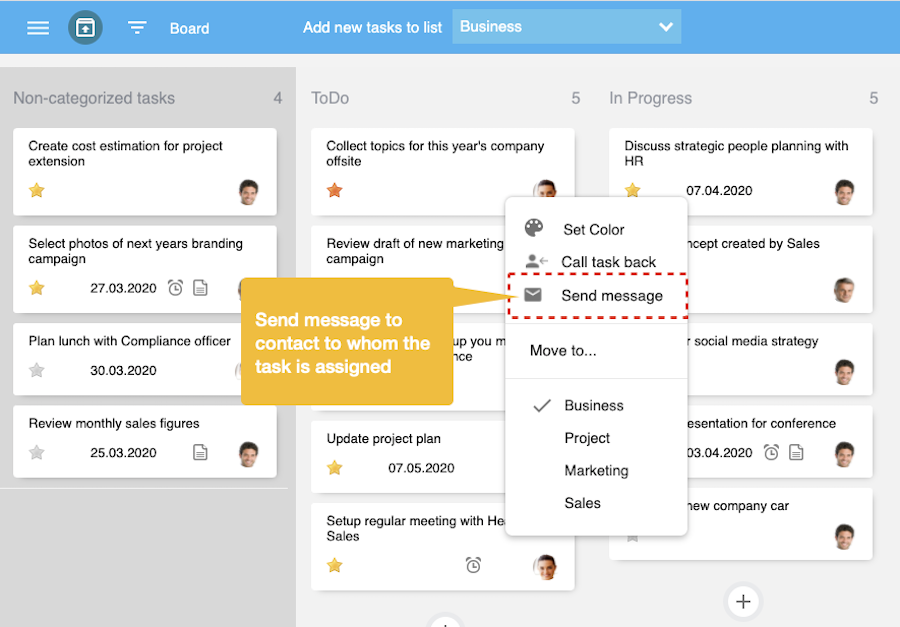
|