
Need more help?
Go to the help overview.
|
Download task lists and tasks to Google Sheet
You can download a task lists with its tasks and all releated information into a new Google Sheet document which is created automatically within your Google Drive. For each task the complete information is downloaded in dedicated columns in the Sheet spreadsheet. In the following the steps for granting Organiseme the authorisation to create a new Sheet spreadsheet in your Google Drive is described. How to download a task list is described in the user manual. Before you download a task list for the first time, you need to grant Organiseme the permission to create a Sheet spreadsheet in your Google Drive. Even when you registered for Organiseme with your Google account we did not already request this permission. It is our view on data privacy that we do not ask you for a wide range of authorisations directly when registering with Organiseme. Instead we ask you for a dedicated authorization for a specific feature - and then you can take the decision to grant Organiseme the relevant authorization. There are two ways to start giving Organiseme the necessary authorization: 1) By selecting "Download list" in the task menu for the first time 2) By opening the Settings Start with Download list
Just select "Download list" in the task list menu of the task list you want to download. 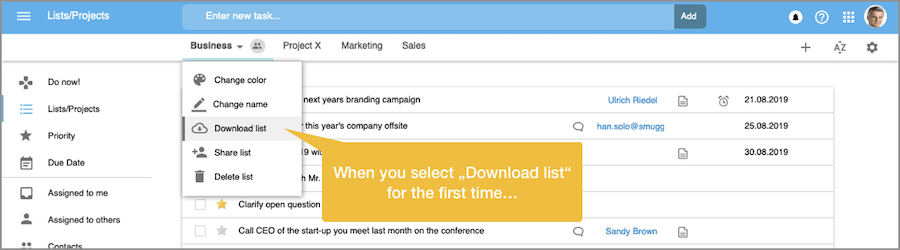
When you do not yet have given the authorization for creating a file in Google Drive a dialog box will appear where you are informed that you need to grant Organiseme the authorization. Next you need to select the Google account - as described below in Step 2. 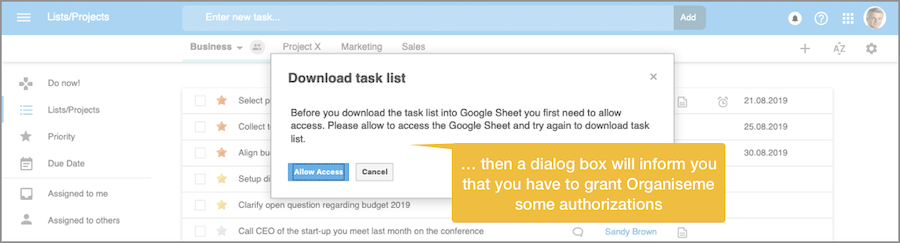
Start in Settings
Go to the Settings and open the tab Integration with Google G Suite. There is one section for the integration with Google Sheet. When the button is displaying "Sign in with Google" then you currently do not have the authorizations to create a spreadsheet in Google Drive. In order to grant the permission just click on the "Sign in with Google" button. Next you need to select the Google account - as described below in Step 2 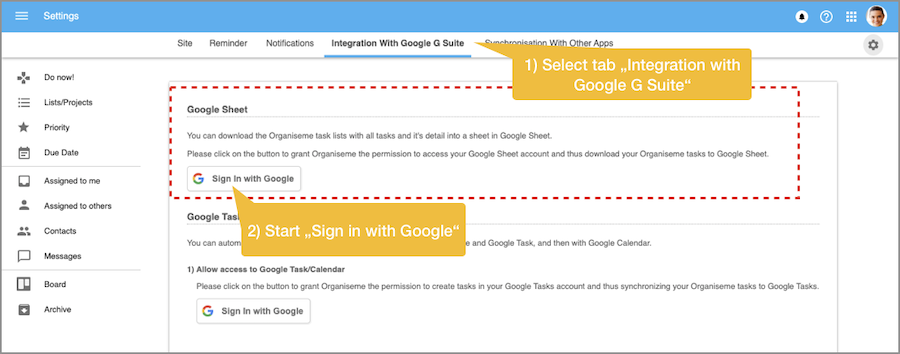
Step 2 - Select Google account
Now you need to specify in which of your Google accounts the spreadsheet should be created. Ideally select the account that you have already used for registering with Organiseme. On the following page you need to enter the password for this Google account and proceed. 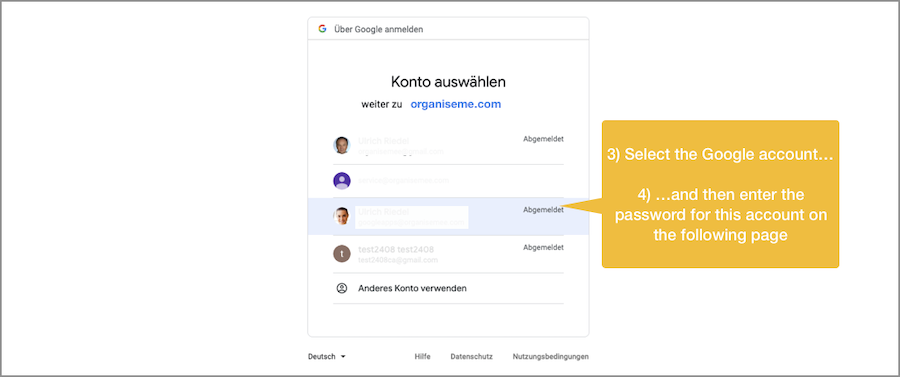
Step 3
On the following page the functionality requested by Organiseme is listed, together with links to Googles terms of service and privacy policies. Here you need to finally allow to give Organiseme the authorization. 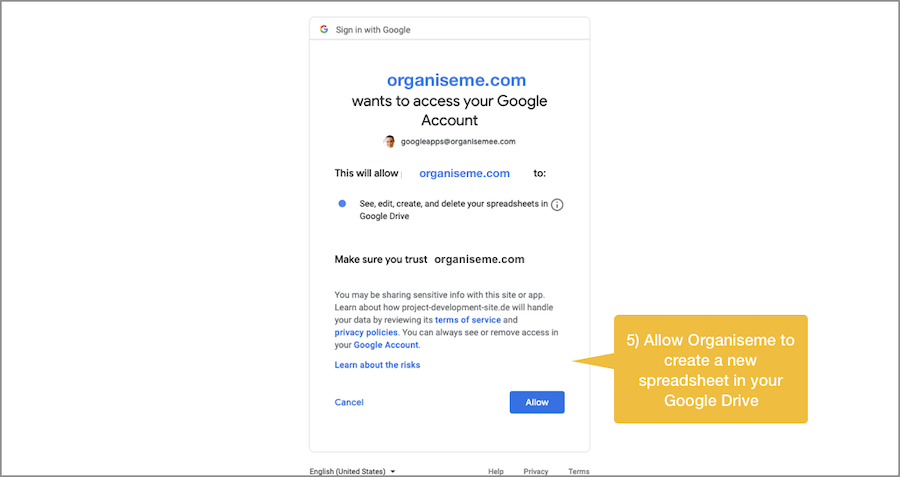
Step 4
Finally the Organiseme settings page is displayed again. Now the wording of the "Sheet" section has been changed indicating that Organiseme currently has the permissions to create a spreadsheet in the user's Google Drive. Also the button has changed - you can now withdrawal the permissions by clicking the "Unlink Google Sheet" button. As you can see we strive to give our users as much control over the authorization they grant to Organiseme as possible. Now we hope you enjoy the Download to Sheet function - and that it helps you or your team getting your things done! 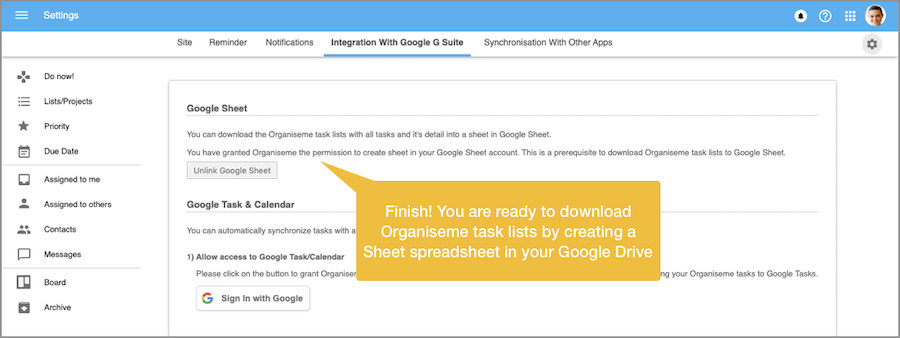
. |